
Demo card 1
Contribution Guidelines
This is a guideline for editing, styling, and formatting when editing Tuxie's Wiki. Please read and comply with these guidelines as it could jeopardise your opportunity in being a contributor.
Formatting
File naming convention
We'll be using kebab-case to name files within the working directory.
Examples
- kebab-case-is-the-best.txt
- tuxies-wiki.svg
- we-bare-bears.png
- become-a-contributor.md
Titles, file names, & permalinks
Titles of articles should use title case.
Examples
- Firefox Guide
- Linux Guide
- Become a Contributor
The name of the file should be derived from the name of the article (if it is one) and be informative. The permalink should derive from the distinguishable directory of the file.
Examples
Gnome Guide @ /docs/notes/linux-guides/gnome.md
--> /linux-guides/gnome/
Terminal Customisation @ /docs/guides/terminal-customisation.md
--> /guides/terminal-customisation/
Article tagging
Articles are tagged in the yaml header of each .md file to dynamically categorise them.
---
tags:
  - Advanced
  - Firefox
  - Browser
  - Productivity
# ... code omitted ...
---
Use the following as a rough guideline of how to tag your article. It is recommended you do not exceed 4 tags.
Recommended level: Beginner, Intermediate, Advanced.
Specific program: e.g. Gnome, Firefox, virt-manager, bash.
Category of program: e.g. Browser, OS, VM, Terminal.
Category of guide: Fixes, Ricing, Productivity, Web-Dev, Wiki.
Language
English guides are written in non-Oxford Standard GB English (en-gb). Keep in mind the universal language standard for code is US English despite the guides being in Standard GB English.
Use professional, concise, and effective language that avoids unnecessary complexity. Our mission is to effectively transfer information and convey ideas, not write for high academia.
Use 'we' in universal articles. Use 'I' in blogs.
Write for a beginner
Assume the reader is new to Linux. Explain things plainly enough that a high-schooler could follow along without having to look anything up.
- Plain words first. Use everyday language. Reach for a technical term only when there is genuinely no simpler way to say it — and when you must, explain what it means in a few plain words the first time it appears.
- Explain the payoff, not the plumbing. Tell the reader what something does for them, not how it works under the hood. Internal names, config keys, and algorithm names belong inside a
::::detailsat most — keep them out of the main steps. - Short sentences, one idea each. If a sentence is doing two jobs, split it in two.
- A simple analogy often beats a precise definition when the goal is understanding (e.g. "each setting is its own box that fills up and throws out its oldest").
For example
Avoid: "Snapper cleanup runs the number, timeline, and empty-pre-post algorithms against NUMBER_LIMIT to prune snapshots tagged cleanup=number."
Prefer: "Snapper cleanup deletes old snapshots so they never fill your disk, using the limits you set."
Code formatting
Formatting is not strictly monitored as long as the output is clean (i.e. the generated content is pretty).
The use of the Prettier extension in VS Code or an equivalent would be appreciated.
Use article permalinks when referring to internal pages and assets (placed in the .public folder). This makes project structuring more maintainable.
Code Structure
In some occasions, we encounter usage of nested formatting tools such as details and steps within one another. In similar cases, we should always follow the rule of adding an additional ":" to the outer tool. Below is an example illustrating this point.
The rule is simple: every container must have more colons than any container nested inside it. Count from the innermost container outward, adding one colon at each level.
Count from the inside out
Start with the innermost container at ::: (3 colons — the minimum). Each container wrapping it gets one more colon. Never skip a level.
| Nesting level | Colons | Example |
|---|---|---|
| Innermost | ::: | :::note, :::card |
| One level up | :::: | ::::details, ::::collapse |
| Two levels up | ::::: | :::::steps, :::::demo-wrapper |
| Three levels up | :::::: | ::::::details |
A common mistake is writing a container with the same or fewer colons than something inside it — this breaks rendering. If a container does not close correctly, check that its colon count is strictly greater than all containers nested within it.
See code..
<!-- ":::::" demo-wrapper-->

::::: demo-wrapper

<!-- "::::" for details-->

::::details

<!-- ":::" for steps-->

:::steps

- I use arch btw
- I'm Lunear btw

:::

::::

:::::
Example output
- I use arch btw
- I'm Lunear btw
Icons
We'll follow the following hierarchy for icons:
Core website components
mdi >> ic >> others
We prefer to keep navigational and core components clean, without colours.
Cards
fluent-emoji >> fluent-emojis >> devicon >> logos >> others
Cards would preferably be catchy and fun.
Tabs
devicon >> logos >> mdi >> ic >> simple-icons >> others
Similar to core components, they should be clean and informative; some colour would be nice, though.
How to add an icon...
Format: ::emoji:name =size /color::
size refers to the px size
/color refers to the hex value
See code...
::mdi:linux =50 /#000000::

::mdi:fedora =32 /#3f7ac3::

::fluent-emoji:party-popper::
Document components
Callout container
If the content you will be putting in the callout container is relatively short, simply make it the title of the callout.
See code...
:::important This is an announcement for everybody: I love Linux!
:::

:::tip Everybody loves some pro tips :\)
:::
This is an annoucement for everybody: I love Linux!
Everybody loves some pro tips :)
Card & card grid
You can use card to serve as a decorative callout container. Use card-grid to indicate the author(s), maintainer(s), and contributor(s) of an article.
For what icons to use, refer to icons section.
See code...
::::card-grid

:::card title="Demo card 1" icon="fluent-emoji-flat:card-index"
:::

:::card title="Demo card 2" icon="fluent-emoji-flat:card-index"
::::
Demo card 2
Code
Use code to indicate files, programs, and directories. Simply surround the text you want to "codify" with backticks (`).
See code...
`fzf` is a program that allows for fuzzy searching in the cli.fzf is a program that allows for fuzzy searching in the cli.
Code block & inline code
Always wrap programs, applications, and directories in inline code (`) for better legibility. Do not use both highlight and inline code together — if the term is technical (a program, command, path, or config value), use inline code only. Reserve highlighting for non-technical emphasis in prose.
See code...
Go to `~/Documents`

`Gnome Extension Manager` allows you to manage Gnome extensions.

`fastfetch` is pretty cool!
Go to ~/Documents
Gnome Extension Manager allows you to manage Gnome extensions.
fastfetch is pretty cool!
Always wrap code around code block (```) for better legibility and styling consistency.
See code...
```bash
# this is some example bash code
sudo dnf update
```
# this is some example bash code
sudo dnf updateKeybindings
Write keyboard shortcuts with each key wrapped in inline code and joined by a literal +. Capitalise the key names (e.g. Ctrl, Shift, Alt, Super, Enter). This keeps shortcuts legible and consistent across guides.
See code...
Press `Ctrl`+`Shift`+`,` to reload the config.

Bind a terminal to `Super`+`Return`.
Press Ctrl+Shift+, to reload the config.
Bind a terminal to Super+Return.
Quick append
A quick append is a ::::details Quick append block placed right after a guide's intro that consolidates every config or command the guide covers, letting readers copy everything at once. Use :::code-tabs for a single config file, or :::tabs (with an apply/reset pair) for CLI commands.
See code...
::::details Quick append

:::code-tabs

@tab ~/.config/ghostty/config

```ini
theme = Everforest Dark Hard
background-opacity = 0.8
```

:::

::::
Quick append
~/.config/ghostty/config
theme = Everforest Dark Hard
background-opacity = 0.8
Download bundles
When a guide offers a downloadable bundle — typically a folder of dotfiles plus an installer — serve it same-origin from the wiki so the reader clicks and the download starts, with no detour out to GitHub.
- Source and zip live together under
docs/.vuepress/public/assets/<name>/— one folder, one source of truth. The editable source sits in a named subfolderdocs/.vuepress/public/assets/<name>/<name>/; the built zip sits beside it asdocs/.vuepress/public/assets/<name>/<name>.zip, alongside the guide's other assets (thepublic/folder is served from the site root,base: "/"). - Link it with the root-relative permalink
/assets/<name>/<name>.zip, exactly as images are referenced.
docs/.vuepress/public/assets/<name>
The build source is the source of truth.
The files under assets/<name>/<name>/ are canonical for every file whether or not it appears in a guide.
When a config is shown inline in the guide, that inline block should mirror the source: edit the source subfolder first, then update the guide block (and any generator that writes it, e.g. a keyd-setup.sh heredoc) to match.
The zip should not be hand-edited; always regenerate it from source.
Always zip — never link a raw file. The site is a single-page app: a URL with no file extension (e.g. /assets/edge/HubApps) is caught by the client-side router and 404s, while a text file (.jsonc, .conf, .sh, …) is served inline as a page of text instead of downloading. Only a .zip extension both bypasses the router and triggers a real download. This holds even for a single file — zip it (at the archive root so it extracts in place), don't link the bare file.
The hosted zip is a committed static copy — it does not auto-update. Whenever you change anything in assets/<name>/<name>/, re-zip so the download stays in sync with the source. Always build from the named source subfolder, never the bundle folder itself — that way the old <name>.zip and any sibling screenshots are not swept into the new zip.
Folder bundle
# archive keeps a <name>/ root, extracts into a folder
cd docs/.vuepress/public/assets/<name>
rm -f <name>.zip
zip -rX <name>.zip <name>/
Single file
# archive stays flat, extracts in place; zip name is free (e.g. HubApps.zip)
cd docs/.vuepress/public/assets/<name>/<name>
rm -f ../<name>.zip
zip -X ../<name>.zip <file>
The zip target is always the named subfolder (or a named file inside it) — never . or the parent — so the sibling zip can never be included.
See code...
[download the zip](/assets/logitech-linux-setup/logitech-linux-setup.zip)Code tabs
Use code tabs to:
- Indicate changes are made in a specific file (indicated by the file name). Check Plume Theme Documentations for details on code highlighting.
- To not use unnecessary space when displaying multiple files.
See code...
::::code-tabs

@tab Hello.java

```java
public class Hello {

  public static void main(String[] args) {

    System.out.println("Hello world");
  }
}
```

@tab example.md

```md
---
author: aier
permalink: /testing/aier/
---

# Title text

Content text... Content text... Content text...

Content text...
```

::::
Hello.java
public class Hello {
public static void main(string[] args) {
example.md
---
author: aier
permalink: /testing/aier/
---

# Title text

Content text... Content text... Content text...

Content text...
Demo wrapper
Use demo wrapper to show the product of something.
See code...
:::demo-wrapper
Content text...
:::
Content text...
See code...
:::demo-wrapper img
:::
Details & collapse
Use details to collapse content that you don't want taking up a large amount of screen space.
See code...
:::details
The following is a picture of Ice Bear from We Bare Bears.

:::Details
The following is a picture of Ice Bear from We Bare Bears. 
When you have to use multiple details containers, use collapse instead. For lists of extensions or apps inside a collapse, see Extension & module entries — links and configs always sit above the picture/video.
Use ::::details to hide deep technical "why" — mechanism explanations, internals, and background theory — so newcomers can follow the actionable steps without being overwhelmed. Keep the symptom and the fix in the main flow; move the explanation inside the ::::details. A summary label like "Why this happens (technical detail)" signals opt-in reading clearly.
Always pair collapse with a card unless the only content is a photo. If it has any text pair it with a card as such:
See code...
::::collapse accordion
- Use a card for mixed media and sole text.
:::card
The following is a picture of Ice Bear from We Bare Bears.

:::
- Card can be omitted in the case of a singular image.

::::Use a card for mixed media and sole text.
Card can be omitted in the case of a singular image.
Extension & module entries
When you list extensions, apps, or any item that pairs a link with settings and a demonstration — typically inside a collapse — follow a fixed order. The link and any configs always go above the picture or video so a reader sees them the moment they expand a module. A tall screenshot must never push a config below the fold, where it gets missed.
Order, top to bottom:
- [Name](link)— with optional_(notes)_on the same line.:::info— a one-line description of what the item does.:::tip— quick settings / config, with a short label (e.g.My settings). Omit the whole block if there is no config.- The picture or video demonstration, last. Use a bare
for an image; wrap a<video>in:::demo-wrapper.
These entries usually sit inside a collapse (sometimes wrapped in a card), so mind the colon-nesting rule: the inner :::info / :::tip / :::demo-wrapper stay at ::: while the wrapping collapse / card take more colons.
See code...
::::collapse
- [Extension Name](https://extensions.gnome.org/extension/0000/example/) _(optional notes)_
:::info A one-line description of what the extension does.
:::
:::tip My settings
```bash
dconf write /org/gnome/shell/extensions/example/some-key true
```
:::

- [Another Extension](https://extensions.gnome.org/extension/0001/another/)
:::info Items with no config skip the tip block entirely.
:::

::::Extension Name (optional notes)
Headings
Heading 1 (#) does not appear in the table of contents, only use it in rare cases where Heading 2 (##) does not fit use-case.
Keep the keywords of Heading 2 (##) and 3 (###) bold. If the heading is relatively short, make the entire heading bold for better distinction from regular text and Heading 4 (####)
Heading 4 (####) does not appear on the table of contents, use it for minor titles/sections within larger topics
We prefer titlecase for Heading 2 (implicitly Heading 1), and NOT using titlecase in lower headings.
See example...
## **Heading 2**

### **Heading 3.1 would look like this**

### **Heading 3.2 would look like this**

## **Ricing Gnome** in 2025 with my friends

### **Heading 3.1 would look like this** if it was super duper long and has a lot of text

### **Heading 3.2 would look like this** if it was super duper long and has a lot of text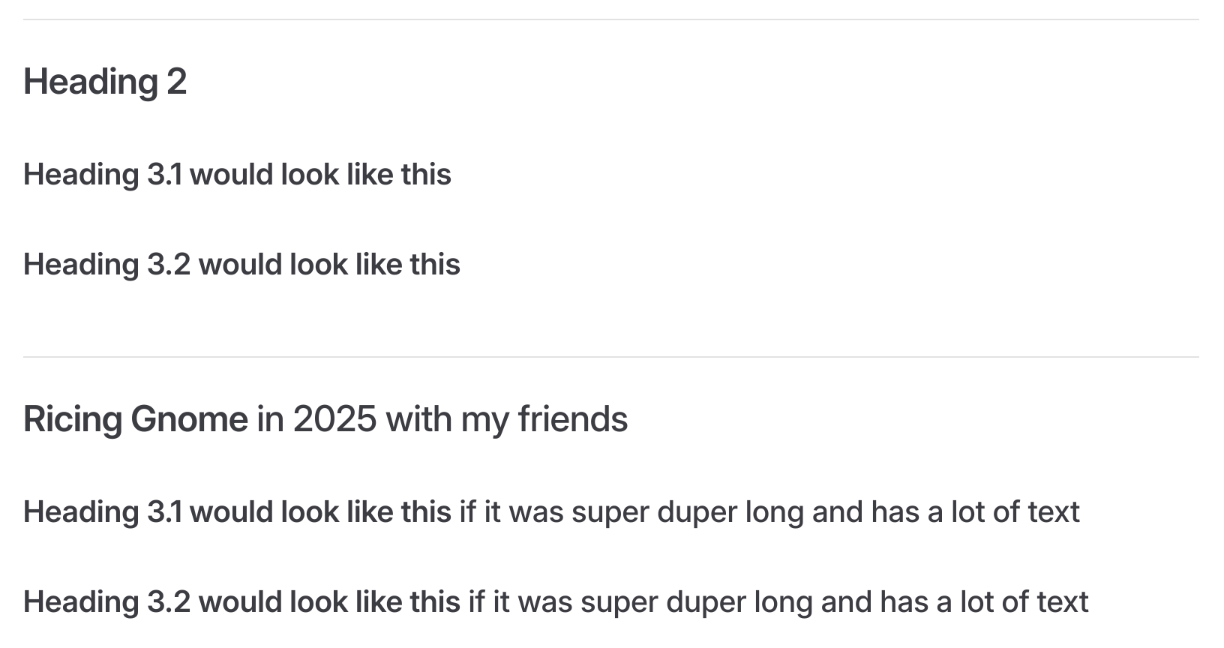
Highlighting
Use highlighting (==) to emphasise text, especially in paragraphs.
Highlights will replace bolding entirely.
Do not use highlighting in titles such as headings, step module titles, or collapse module titles.
See code...
Linux is known for being ==flexible, secure, and stable==.

It is ==open-source=={.important}, meaning its source code is freely available for anyone to view, modify, and distribute.

This fosters a ==collaborative global community== that continuously improves the system.

==Default==
==Info=={.info}
==Note=={.note}
==Tip=={.tip}
==Warning=={.warning}
==Danger=={.danger}
==Important=={.important}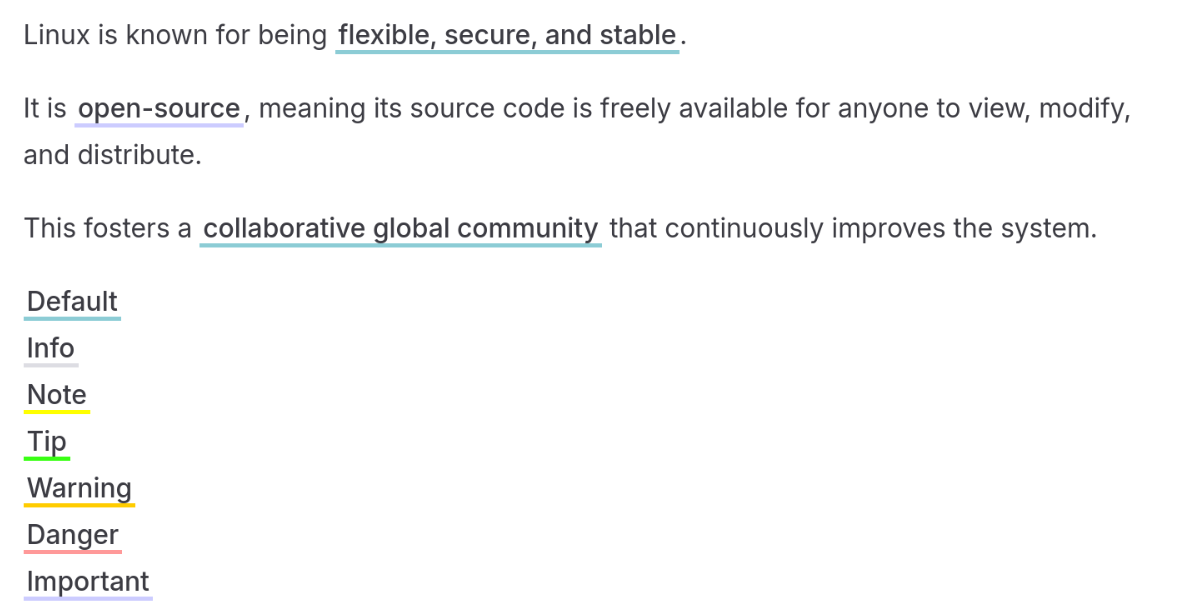
Steps
Use "-" to auto-generate steps instead of manually numbering them. It helps maintenance and editing much easier.
Keep the keywords of your step titles bold. If the step title is relatively short, make the entire title bold for better distinction from content text.
Do not use bold in step description content — use highlighting (==) for any emphasis instead.
See code...
:::steps

- **This is a step**

  Content...

- **This is another step**

  This is even more content...

- **This is yet another step** but it is longer and you probably only want to make keywords bold

  This is yet even more content...

:::
This is a step
Content...
This is another step
This is even more content...
This is yet another step but it is longer and you probably only want to make keywords bold
This is yet even more content...
Tabs
Use tabs for showing multiple options to not use up unnecessary space.
The default tab order is Fedora, Debian/Ubuntu, Arch. Always follow this order when all three distros are present.
See code...
:::tabs

@tab ::devicon:fedora:: Fedora

```bash
sudo dnf install timeshift
```

@tab ::devicon:debian:: Debian/Ubuntu

```bash
sudo apt install timeshift
```

@tab ::devicon:archlinux:: Arch

```bash
pacman -S timeshift
```

:::
Fedora
sudo dnf install timeshift Debian/Ubuntu
sudo apt install timeshift Arch
pacman -S timeshiftCode Tree
Use code tree for specifying file structures and/or to specify the content of many files under the same directory.
See code...
::::code-tree title="Some Python Project" height="400px" entry="src/main.py"

```python title="src/visualization/some-files.py"
e = mc^2

# Some more python code...
```

```python title="src/algorithms/algorithms.py"
Some impressive algorithm
```

```python title="src/main.py"
Some python code
```

```json title="dataset.json"
{
  "data1": "Hello world",
  "data2": {
    "data3": "My name is Lunear"
  }
}
```

::::
Some Python Project
some-files.py
algorithms.py
main.py
dataset.json
e = mc^2

# Some more python code...Some impressive algorithmSome python code{
"data1": "Hello world",
"data2": {
"data3": "My name is Lunear"
}
}Contributors


Changelog
7/27/26, 4:01 PM
View All Changelog
c72d1-onb7781-on6eaee-oneb0c5-on4e0b9-on8994b-onac6e7-on41573-on506b4-onc64ca-on77e52-on6f1c8-onfa6be-onde047-on3d2f3-onb8300-on00c9a-on41235-on7c162-on2348f-on08511-on336cc-on77d41-on35118-ondc097-on5f55a-on0ba7f-on53f77-on6c937-on90b93-ona0c49-on0228f-onb67e5-on57cf3-onf1456-on3bf15-on9537b-on6e7b8-one3681-on603ab-on2783c-ondaeb8-on3daf8-onf84c0-on1c174-on9c3a8-on9004c-onf752b-on9d94b-on