
GPU Guide
What this guide covers
This guide will help you set up your GPU on linux.
First, we will install drivers for AMD or NVIDIA.
Then for laptops — Cardwire — a tool that lets a computer with two graphics chips switch between them on the fly, with no reboot, to save battery or gain power when you need it.
Tested on Fedora only
Every step here has been tested on Fedora. The ideas carry over to other distros, but the exact commands may differ. If you run another distro and want to help, contributions are very welcome — see Contributions.
Quick append
Once Cardwire is installed, this is the whole recommended setup in one place.
cardwire config battery-auto-switch true
cardwire config battery-auto-switch-mode hybrid
cardwire config savecardwire config battery-auto-switch true
cardwire config battery-auto-switch-mode hybrid
# NVIDIA laptops only — stops the dedicated chip waking up and draining battery
cardwire config experimental-nvidia-block true
cardwire config savecardwire config battery-auto-switch false
cardwire config experimental-nvidia-block false
cardwire config saveInstalling drivers
NVIDIA's official driver is not in Fedora's default repositories. It lives in RPM Fusion, a community repository. Enable it, then install the driver.
Enable RPM Fusion
If you have not enabled it yet, follow the setup in the Fedora Guide.
Install the driver
sudo dnf install akmod-nvidiaThis also builds a kernel module tailored to your system, so it rebuilds itself automatically after future kernel updates.
Give the module time to build before rebooting — usually around five minutes. Reboot too early and you may boot to a black screen. You can watch it finish with:
modinfo -F version nvidiaWhen that prints a version number, the module is ready.
Trust the driver (only needed for Secure Boot)
Skip this if Secure Boot is off. With Secure Boot on, your computer only loads drivers it already trusts. The NVIDIA driver you just built is brand new, so it is not trusted yet — it refuses to load and you would fall back to the open-source drivers.
Tell your computer to trust it by importing the key Fedora made for the driver:
sudo mokutil --import /etc/pki/akmods/certs/public_key.derYou will be asked to make up a password. It will be used once on the very next reboot; pick something simple.
On the next reboot only, a blue screen called MOK Manager appears. Choose
Enroll MOK, thenContinue, thenYes, and type the password you just set.If you miss the screen, the computer boots as normal — just run the command again to get another go.
Wait, then reboot
Once the module has finished building, reboot to load the new driver. On Secure Boot, this is also the reboot where the MOK Manager screen appears:
reboot
More detail on Fedora's NVIDIA setup — including CUDA and codec support — lives in the NVIDIA GPU Driver Installation guide by the Fedora Docs.
Contribution appreciated
NVIDIA driver setup for Debian/Ubuntu has not been written yet. If you run it and want to help, contributions are very welcome — see Contributions.
Contribution appreciated
NVIDIA driver setup for Arch has not been written yet. If you run it and want to help, contributions are very welcome — see Contributions.
Good news — there is nothing to install. The open-source Mesa AMD drivers ship by default on every major distro and stay up to date with your system updates. Your card already works.
Cardwire
Cardwire is a GPU manager for laptops that have two graphics chips. It is the modern successor to the older supergfxctl tool.
It can block or unblock a GPU without a reboot or logout.
Before you start
- Cardwire needs Wayland — it does not work on X11. Fedora's default GNOME session is already Wayland, so you are likely fine.
- It is experimental. Expect the occasional rough edge.
- Switching to a two-GPU mode requires exactly two graphics chips, which is the typical laptop setup.
Installing Cardwire
Cardwire is packaged for Fedora in the Terra repository. If you have not enabled Terra yet, follow the one-command setup in the Fedora Guide first.
With Terra enabled, install Cardwire and turn on its background service:
sudo dnf install cardwire
sudo systemctl enable cardwired --now
# The "--now" flag starts the service immediately
# as well as enabling it on boot. No reboot needed.Contribution appreciated
Cardwire packaging for Debian/Ubuntu has not been documented yet. If you can help, contributions are very welcome — see Contributions.
Contribution appreciated
Cardwire packaging for Arch has not been documented yet. If you can help, contributions are very welcome — see Contributions.
Basic commands
Three commands cover everyday use:
cardwire list              # show every GPU, its ID, and whether it is blocked
cardwire get               # show the current mode
cardwire set integrated    # switch mode (integrated | hybrid | manual | smart)
A mode change applies to newly launched apps. Anything already open keeps the GPU it started with.
Here is what each mode does:
| Mode | What it does |
|---|---|
integrated | Blocks the dedicated GPU. Longest battery life — everything runs on the built-in graphics. |
hybrid | Unblocks the dedicated GPU. Both chips available; apps can use the powerful one. |
smart | Blocks the dedicated GPU by default, but watches apps as they launch and lets approved ones use it. |
manual | The default, safe mode. You block and unblock each GPU yourself. |
In manual mode you control a single GPU directly by its ID (find IDs with cardwire list):
cardwire gpu 1 --block     # block GPU 1
cardwire gpu 1 --unblock   # unblock GPU 1
cardwire gpu 1 --lsof      # see what is currently using GPU 1
Recommended setup
We recommend setting up battery-based switching to automatically use the built-in graphic while on battery and to use the dGPU when plugged in. This maximises battery life when not plugged in and gives you full performance when plugged.
cardwire config battery-auto-switch true
cardwire config battery-auto-switch-mode hybrid
cardwire config save
Tips
battery-auto-switch-mode is the mode Cardwire returns to when plugged in. On battery it always drops to integrated to save power. Leaving it on hybrid means: full power on the charger, quiet and efficient off it.
NVIDIA: stop the dedicated chip waking up
Tech details
If your dedicated chip is an NVIDIA card, it's worth turing on experimental-nvidia-block.
Certain apps (particularly Vulkan and GTK on Gnome) — can quietly wake the dedicated chip even while it is blocked. This drains your battery for nothing.
experimental-nvidia-block makes sure that your NVIDIA card doesn't get waken up in integrated mode, and Cardwire's authors recommend it for NVIDIA laptops.
cardwire config experimental-nvidia-block true
cardwire config save
Warning
This only works reliably on the standard laptop setup — exactly two chips: the built-in graphics plus one NVIDIA card.
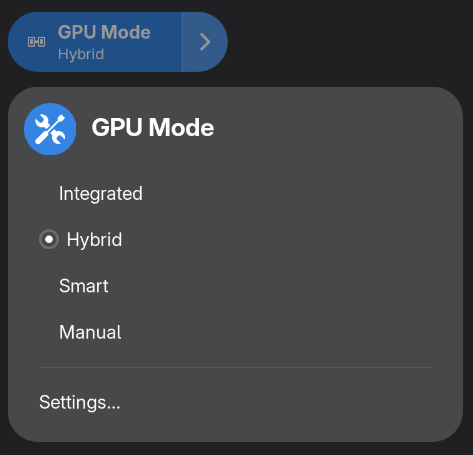
Gnome Extension: Cardwire GPU Toggle
A Quick Settings toggle to switch between GPU modes using cardwire.
If you already use battery-auto-switch, this may be redundant.
Contributors

Changelog
3c19f-on7b2e3-on146a1-on4b8f9-onf7dee-on89b54-onfc421-on4fdb9-on6e4d8-on73879-on